Heading
Text of page. You can edit this directly and highlight text to apply simple formatting.
For more complicated formatting, open an edit box by clicking the grey “cog” symbol  that appears when you hover or click the mouse. (You may need to click outside the text and then hover again to do this.)
Enlarge the edit box if you want to by clicking one of the little icons at the top  .
Select the Visual tab to quickly apply styles and highlighting.
If you want some text to be a heading, select it and choose from the Paragraph menu.
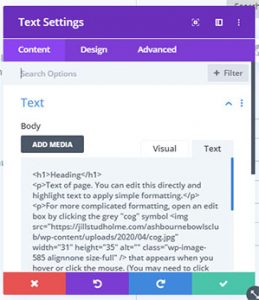
To add a photo click Add Media.
Click the Green tick to save
To save the entire page click the Green Save or Publish button bottom right. If you don’t see this, click the bottom purple button and it will appear.